


PropellerAds remains one of the popular sources of advertising traffic for webmasters and affiliate teams. When working with large volumes of clicks, it is important to properly organize routing: divide the audience by GEO, devices, browsers, and other parameters, and direct different segments to the appropriate pages.
In this guide, we will break down the full process of setting up a flow for PropellerAds traffic using Cloaking.House - from creating a White Page to analyzing clicks after launch.
Tools needed for work
For basic setup you will need:
Cloaking.House: a cloud service for traffic filtering and routing.
White Page: a page used as the main landing page for the corresponding audience segment. It can be created using the AI White Page Generator in Cloaking.House.
Offer Page: the target page or link to the offer.
Domain: the domain where the site will be hosted.
Hosting: a server for hosting the White Page and integrating Cloaking.House.
PropellerAds ad account: the source of incoming traffic.
Main recommendations for working with PropellerAds
Before launching a campaign, determine the GEO, device type, ad format, and target action. At the first stage, it is better not to mix too many GEOs and devices - individual segments are easier to test and analyze. Also, check the loading speed and correct display of the White Page and Offer on the devices that are used in the campaign. After launch, compare the ad statistics with the data in the Clicks section to see the actual parameters of the incoming traffic.
Creating a White Page for PropellerAds
Before setting up the flow, you need to prepare a White Page. It can be created manually or using the AI White Page Generator in Cloaking.House.
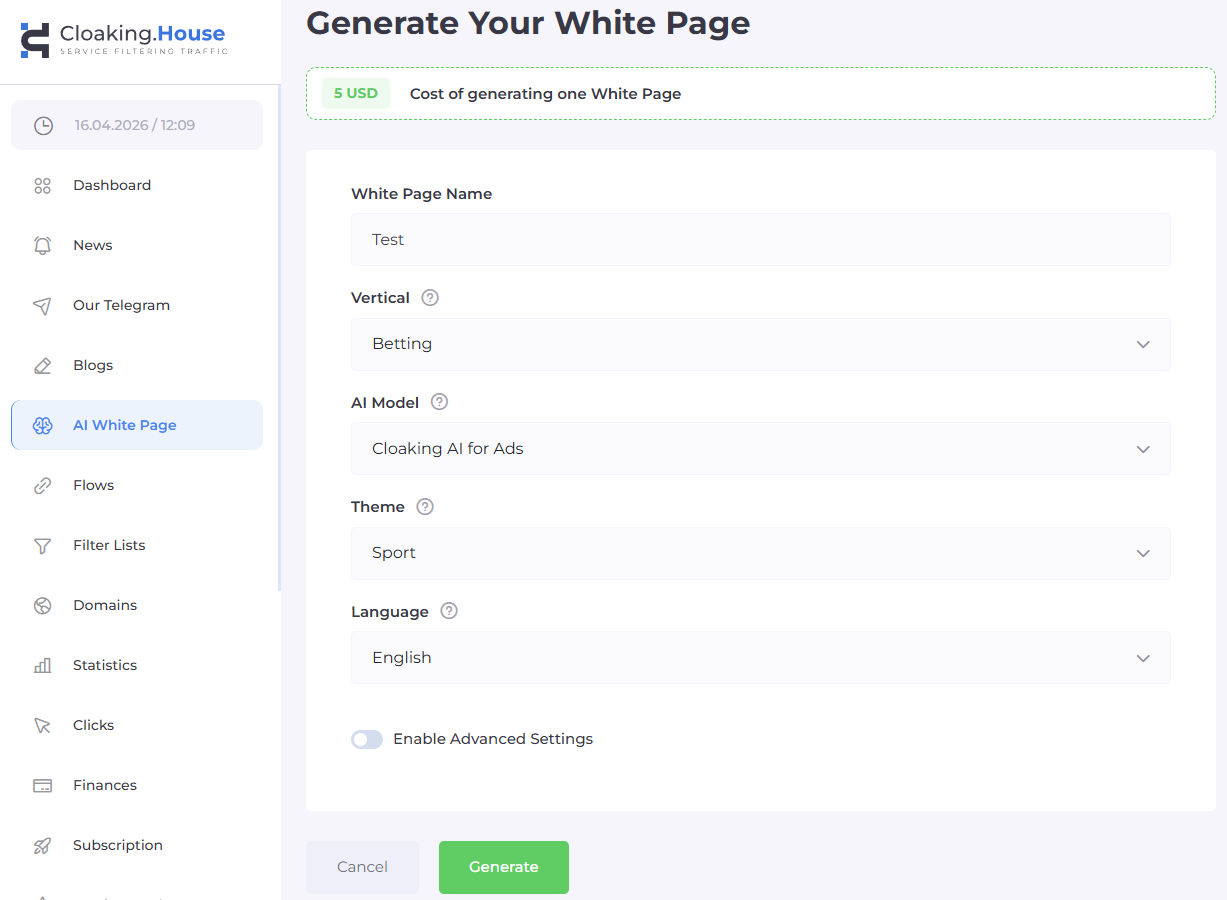
When generating, you must specify:
Vertical: the vertical;
Language: the desired language;
Theme: the topic of the page;
Model: the format of the page.
For an advertising campaign, it is important that the page is correctly adapted for the devices on which the traffic is launched, has a clear structure, and properly loads all necessary resources. After generation, download the ready-made archive and place it on your hosting.
Preparing the file

The main file needs to be renamed:index.html - site.html After that, check the page directly via the browser:https://your-domain.com/site.html If the page opens correctly, proceed to creating a Flow.
Creating a flow in Cloaking.House
After preparing the White Page, open your Cloaking.House personal dashboard and create a new Flow.
Step 1: White Page and Offer page
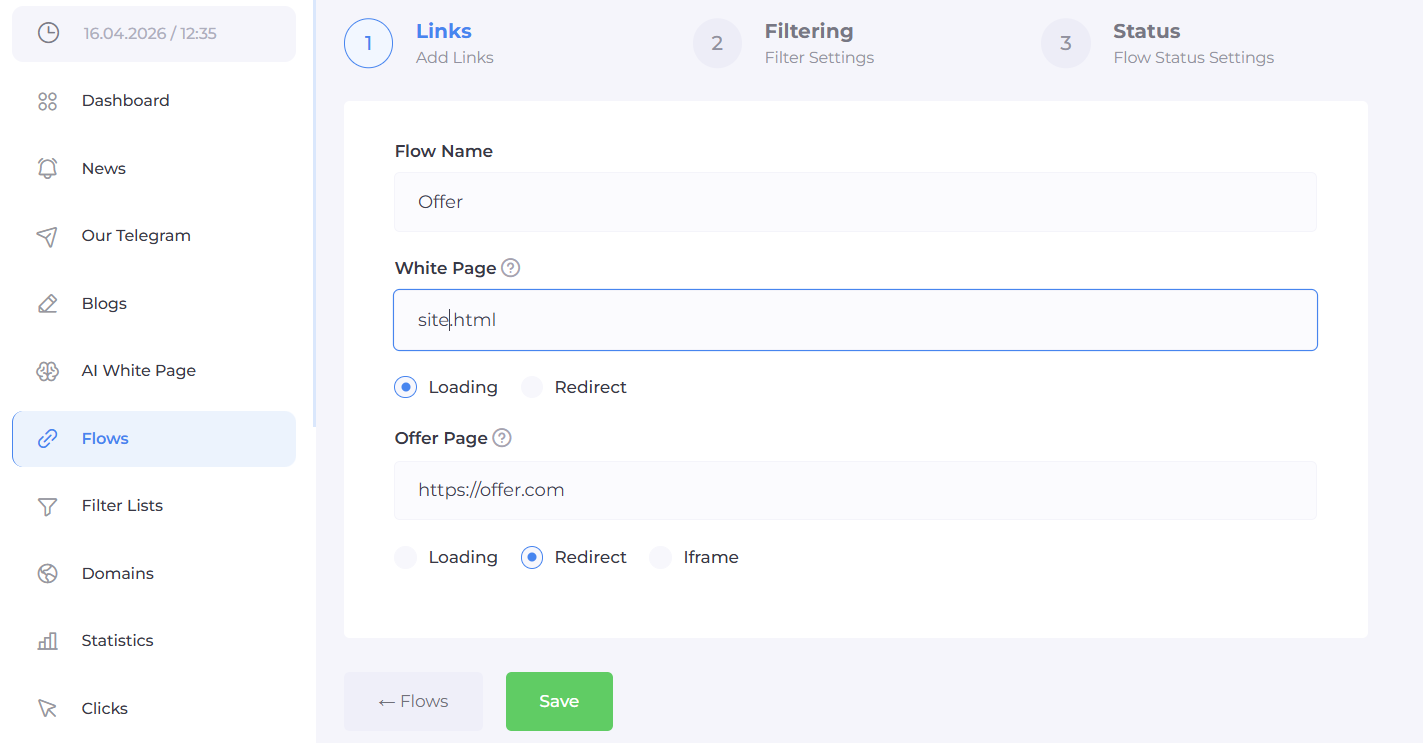
In the flow, you need to define two main pages:
White Page - specify our prepared site.html file, use the Loading method.
Offer page - specify the link to the target page. If the offer is located on an external resource, you can use Redirect for it.
Step 2: Setting up filters
After adding the White Page and Offer, proceed to traffic filtering. Cloaking.House allows you to combine several parameters to segment the audience more precisely.
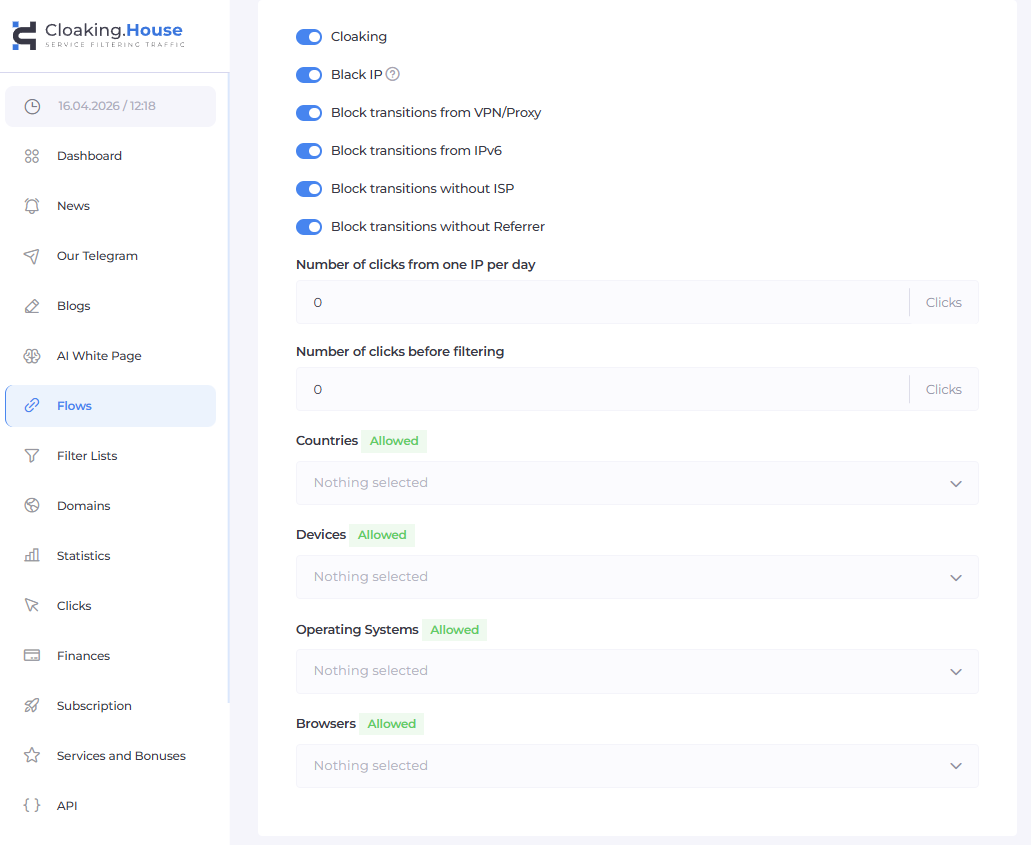
GEO - The GEO filter determines the user's country or region. If a PropellerAds campaign is launched for a specific country, this parameter allows you to account for GEO during routing.
Device - Determines the device type:
Mobile;
Desktop;
Tablet.This is especially useful if the pages or offer are designed for a specific device type.
OS - The filter allows you to divide traffic by operating system - for example, Android, iOS, Windows, or macOS.
Browser - Takes into account the user's browser and can be used as an additional routing condition.
VPN / Proxy - Allows you to account for the use of VPN or Proxy when processing a click.
IPv6 - A separate parameter for working with connections via IPv6.
ISP - The filter allows you to take into account information about the user's internet service provider.
Referrer - Referrer shows the source of the click. This parameter can be useful for analyzing and distributing traffic by sources.
Click Limits - Allows you to set limits on the number of clicks from a single IP or the number of clicks before filtering.
Step 3: Integrating Cloaking.House on hosting
After setting up the Flow, it must be connected to the domain. In Cloaking.House, we recommend using PHP integration.Download the integration file from the flow and place it in the root directory of the desired domain.
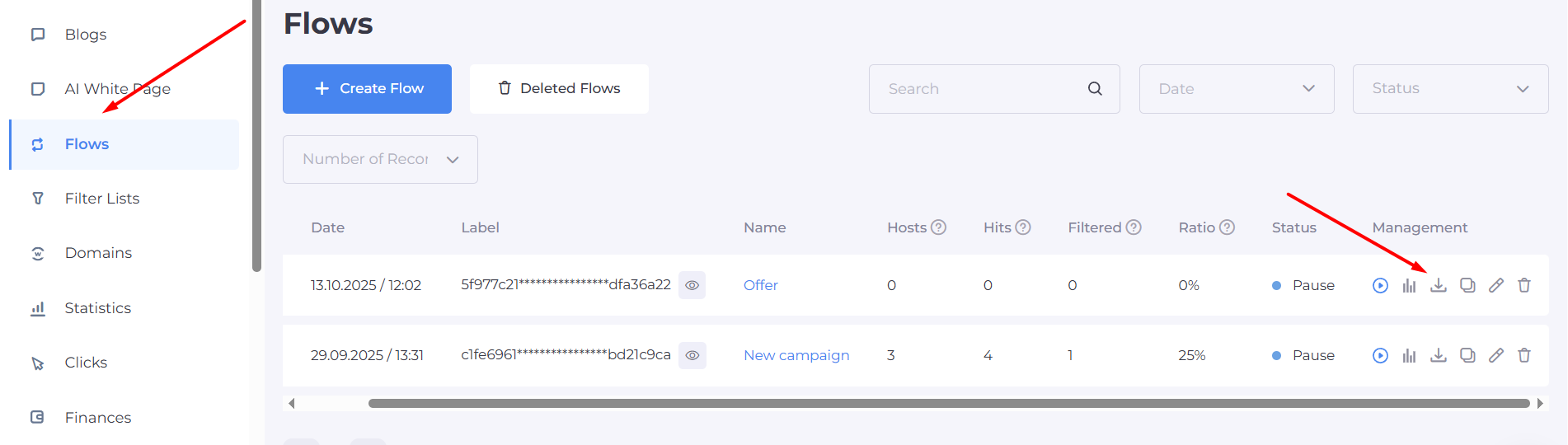
The structure might look something like this:
- public_html/
- index.php - Cloaking.House integration;
- site.html - White Page;
- other files and resources of the page.
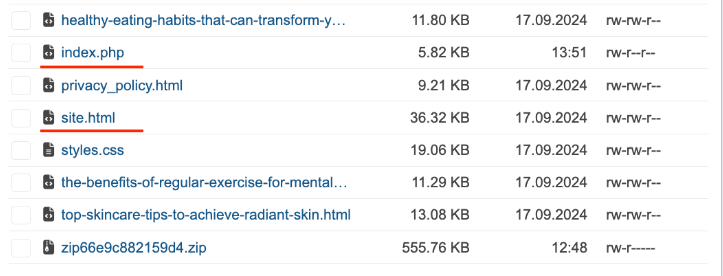
After uploading, open the domain in the browser and make sure the site works without errors.
Activation and testing
Before launching advertising traffic, check the created Flow.Make sure that:
the domain opens;
the White Page loads;
the Offer is available when you add your IP to the whitelist;
the PHP integration works;
the set filters are applied correctly.
For testing, your own IP can be found in the Clicks section and added to the whitelist if necessary to check the routing.
Launching traffic from PropellerAds
After technical testing, you can launch the ad campaign. At the first stage, it is convenient to work with a limited segment - for example, one GEO and one device type. This allows you to get statistics faster and understand traffic behavior. After getting the first data, you can separately test other GEOs, devices, or audience parameters. The main thing is not to change several parameters at once, otherwise, it will be difficult to determine what exactly affected the result.
Analyzing clicks in Cloaking.House
After the launch, go to the Clicks section.
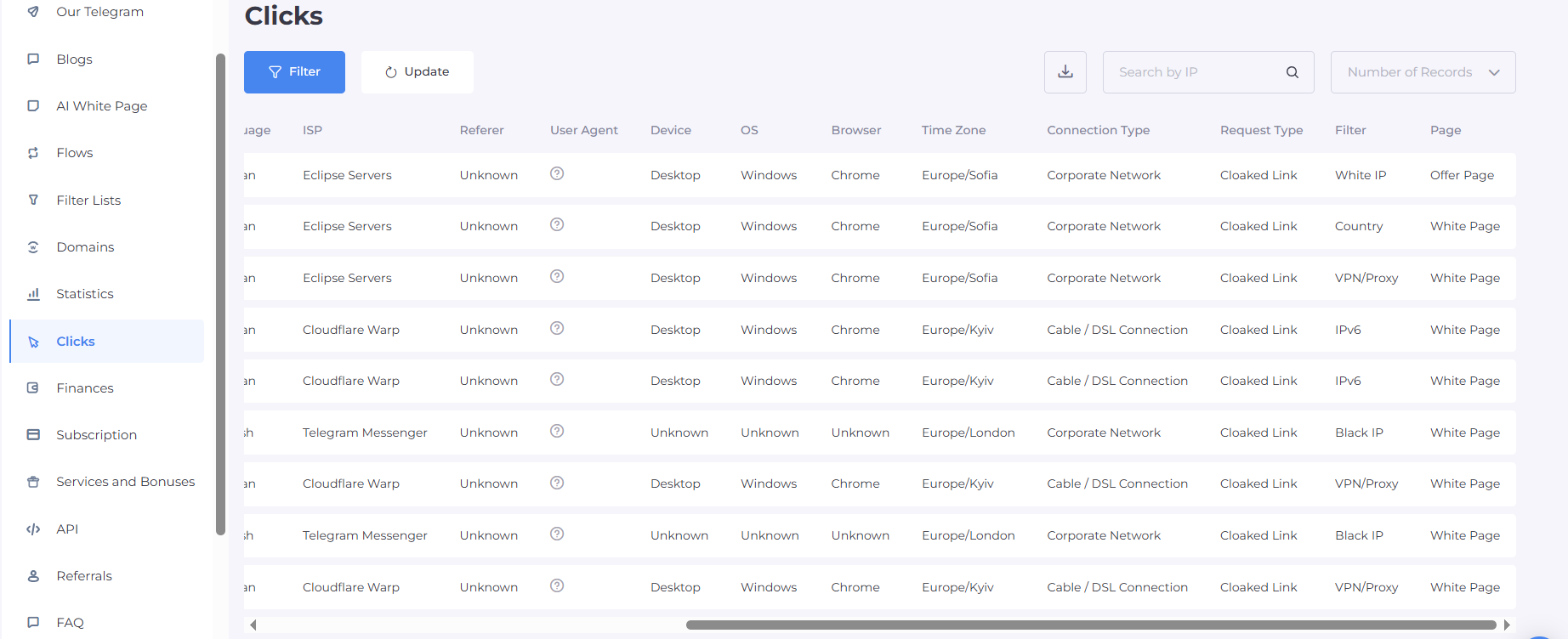
Here you can see the main parameters of incoming clicks:
Result;
White Page / Offer;
Triggered Filter;
IP;
GEO;
Language;
ISP;
Referrer;
User Agent;
Device;
OS;
Browser.
Final recommendations
For stable operation of the PropellerAds + Cloaking.House bundle, you should stick to a simple sequence: prepare a high-quality White Page, upload it to the hosting, create a Flow, set up the main filters, install PHP integration, and test the entire chain before launching ads.
Setting up PropellerAds via Cloaking.House is not limited to creating a single routing rule. The optimal process looks like this: White Page preparation - Flow setup - filtering - integration - testing - clicks analysis - optimization.
This approach allows you to centrally manage traffic routing, see technical parameters of the clicks, and gradually adapt Flows for specific GEOs, devices, and audience characteristics.






Be the first to share your opinion!
We value your feedback — share your thoughts.