


You launch in a new geo, clicks are coming in, but the conversion rate is much lower than in your home market. The offer is the same, creatives are fine, so what went wrong? Very often, the problem lies in the post-click user experience: a visitor from Spain lands on an English page, a visitor from Vietnam sees prices in USD, or a mobile user gets a desktop layout.
These mistakes are cheap to fix but expensive to miss, and you won't catch them by checking the page from your laptop. This guide shows a repeatable pre-launch QA (quality assurance) workflow: use Hidemyacc antidetect browser profiles to replicate visitors from each geo, and use GEO-targeting in the Cloaking.House flow to verify that each visitor group is routed to the correct version of your page.
One rule applies to the entire workflow: every visitor sees the same core offer and content. Only the language, currency, domain, and layout change for their region. This is about testing user experience and traffic quality, which fully complies with the rules of advertising platforms.
Why multi-geo testing is important
Most teams check the landing page once in the main market and then clone it for other geos. Here are the problems that pop up later:
Wrong language: the page loads in English even if a translated version exists.
Wrong currency and formats: prices, dates, and phone formats do not match local standards.
Domain mismatch: the visitor is sent to a domain or folder that doesn't fit their region, undermining trust.
Wrong layout for the device: mobile traffic lands on a desktop page, or vice versa.
Overly strict filters: real customers are mistakenly routed to a fallback page (false positives).
Language, currency, and domain must match the visitor's region. If even one of the three parameters is wrong, conversions drop, even if your ad quality hasn't changed.
What each tool does
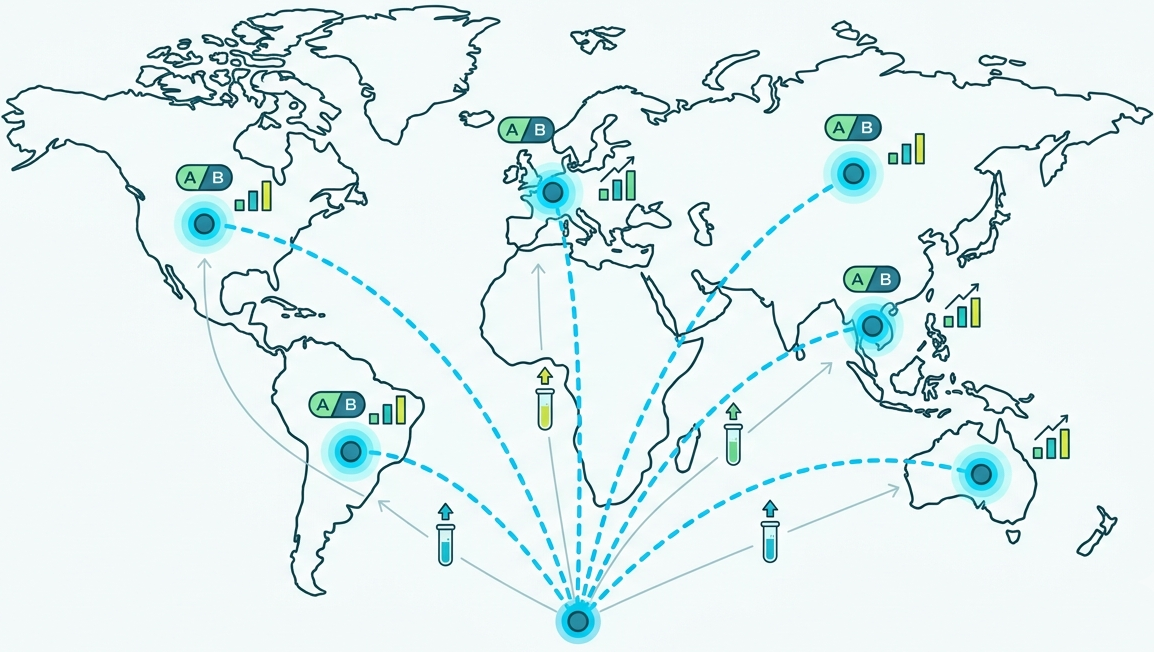
Both tools operate at opposite ends of the same visit.
| Hidemyacc | Cloaking.House | |
| Where it works | On the visitor's side (browser) | On the server side (your landing page) |
| What it does | Gives each browser profile its own environment: proxy, timezone, language, OS, browser | Analyzes every click and routes it according to your flow rules |
| What question it answers | "What does this visitor look like?" | "Which page should this visitor get?" |
With Hidemyacc, you create isolated browser profiles, each behaving like a distinct real user from a specific country. With Cloaking.House, you create a flow with rules based on country, device, OS, browser, language, and timezone, and you can monitor every click in real-time statistics. Together, they form a closed-loop testing cycle.
5 steps of the workflow
Step 1: Make a list of your geos and page versions
For each geo you plan to test, write down:
Country and primary language
The page version they should receive (domain, subfolder, or subdomain)
Currency and local formats
Main device types (desktop, mobile)
Step 2: Create a flow in Cloaking.House
Create a flow and add rules for each visitor group using country, device, OS, browser, language, and timezone. Route each group to the correct page version from Step 1.
Step 3: Create a Hidemyacc profile for each geo
In Hidemyacc, click "New profile" and configure the following tabs.
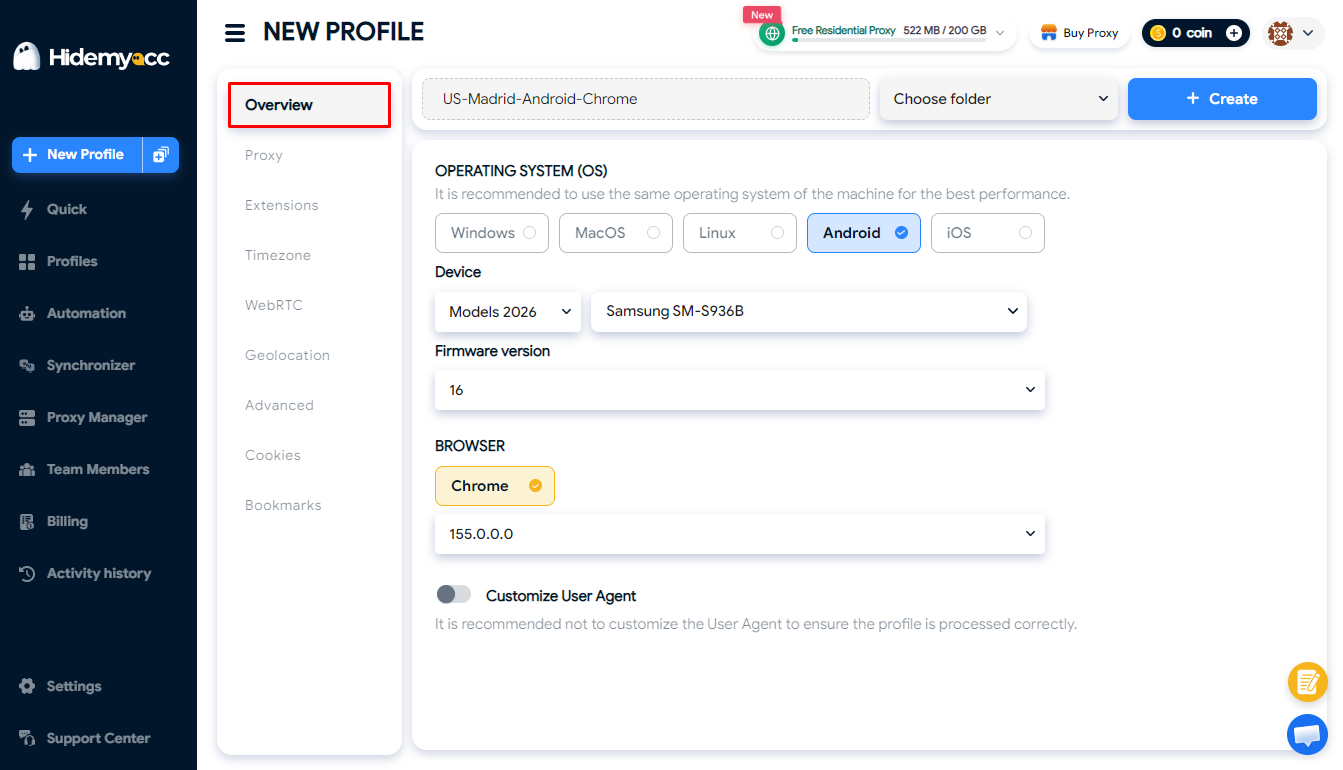
Overview tab: OS and browser
Give the profile a clear name, for example, ES-Madrid-Android-Chrome, so your team can easily find it.
Select the OS that matches the tested device group: Windows, macOS, Linux, Android, or iOS (Android and iOS are available starting from the Base plan). Choose Android or iOS to test the mobile experience.
Select the browser and version (Chrome, Brave, Opera, Edge, or Yandex). Chrome - a solid default choice for most tests. If needed, you can also enter a custom user agent.
Proxy tab: match the target geo
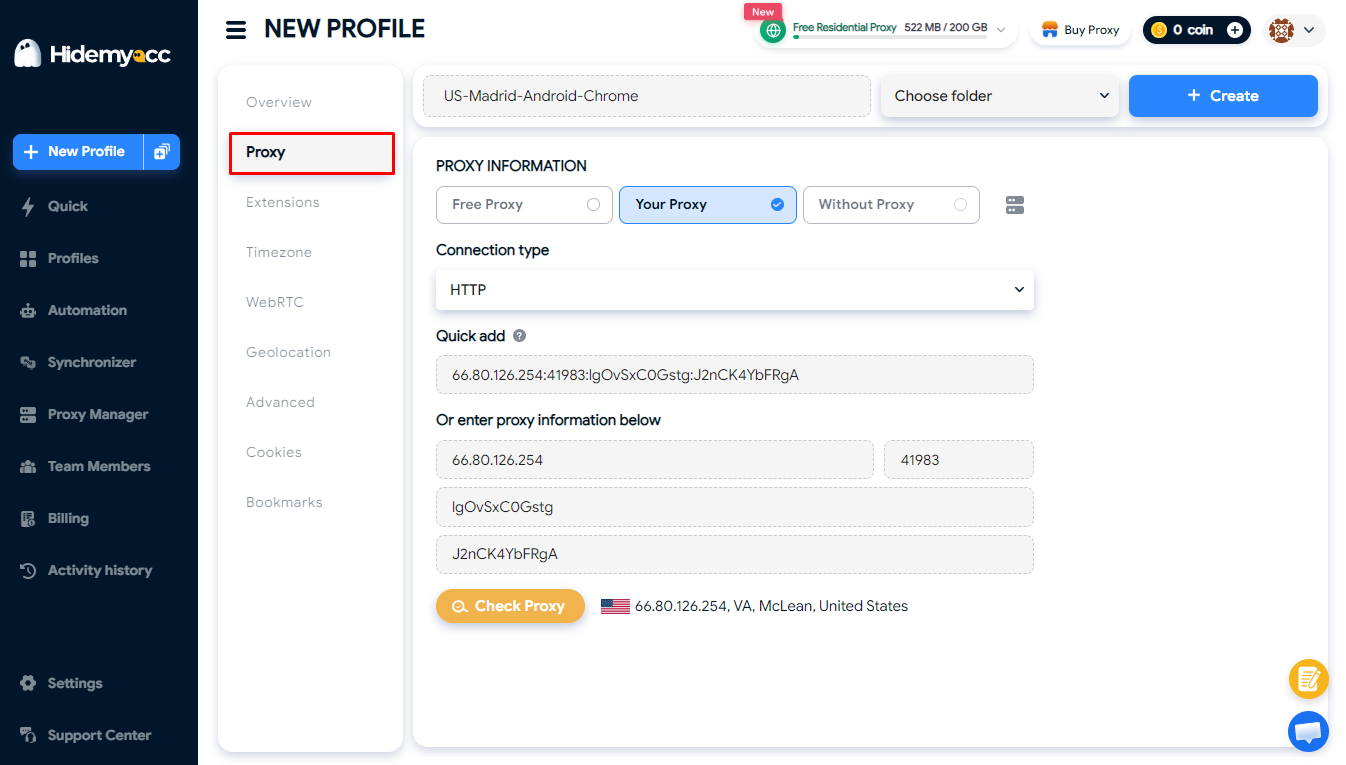
Select Your Proxy to use your own proxy. Choose the connection type (HTTP, Socks4, Socks5, SSH), enter it in the
ip:port:username:passwordformat, then click Check Proxy to ensure it works and shows the correct location.If you maintain a proxy pool, click the Proxy Manager icon to select one without re-entering details. You can tag proxies (e.g., by country) and set an expiration date for each.
Free Proxy (Free datacenter and residential proxies) allows you to select a country and get a proxy automatically, which is convenient for quick checks.
Avoid the Without Proxy option for geo-testing. The profile will use your real IP address.
Timezone tab: leave on auto
By default, the timezone matches your proxy. Change it manually only if the IP checker service shows a mismatch.
WebRTC tab: match your proxy type
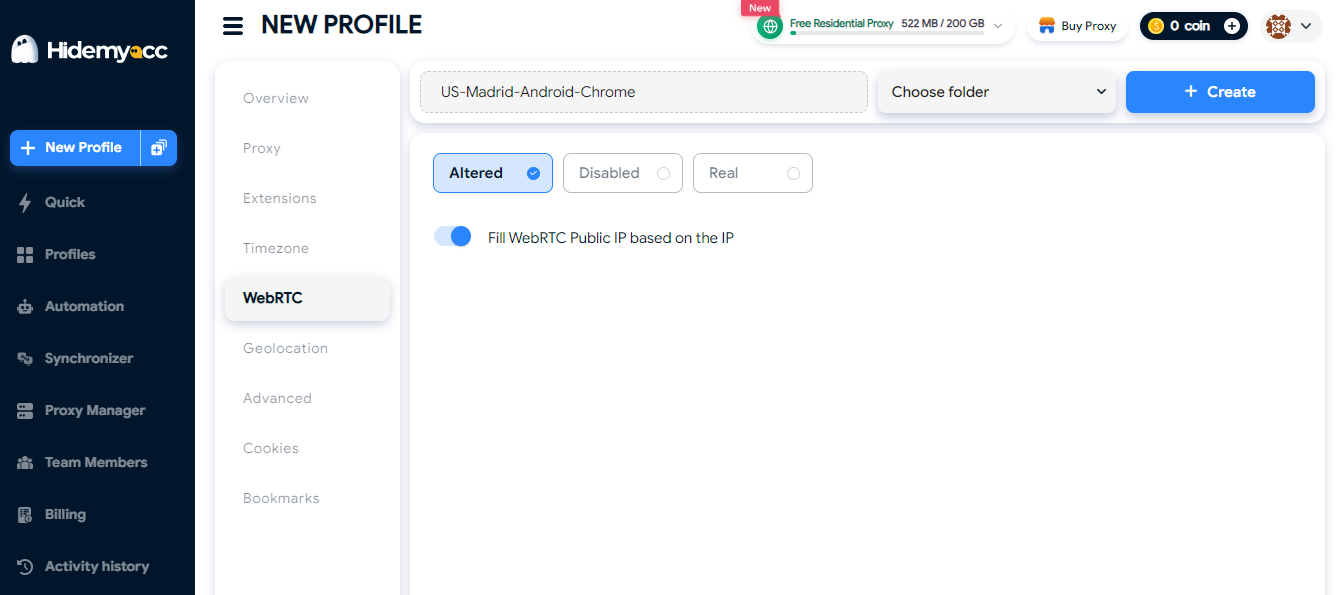
Static proxy: leave the default value Altered so that the IP address revealed through WebRTC matches the proxy IP address.
Rotating proxy: select Disable to avoid IP mismatches.
Real: reveals your actual IP address, so do not use it for geo-tests.
Geolocation tab: leave on auto
By default, the location matches your proxy. If the landing page asks for location permission, you can set Prompt (enter latitude, longitude, and accuracy), Allow, or Block, depending on the scenario you want to test.
Advanced tab: language and notes
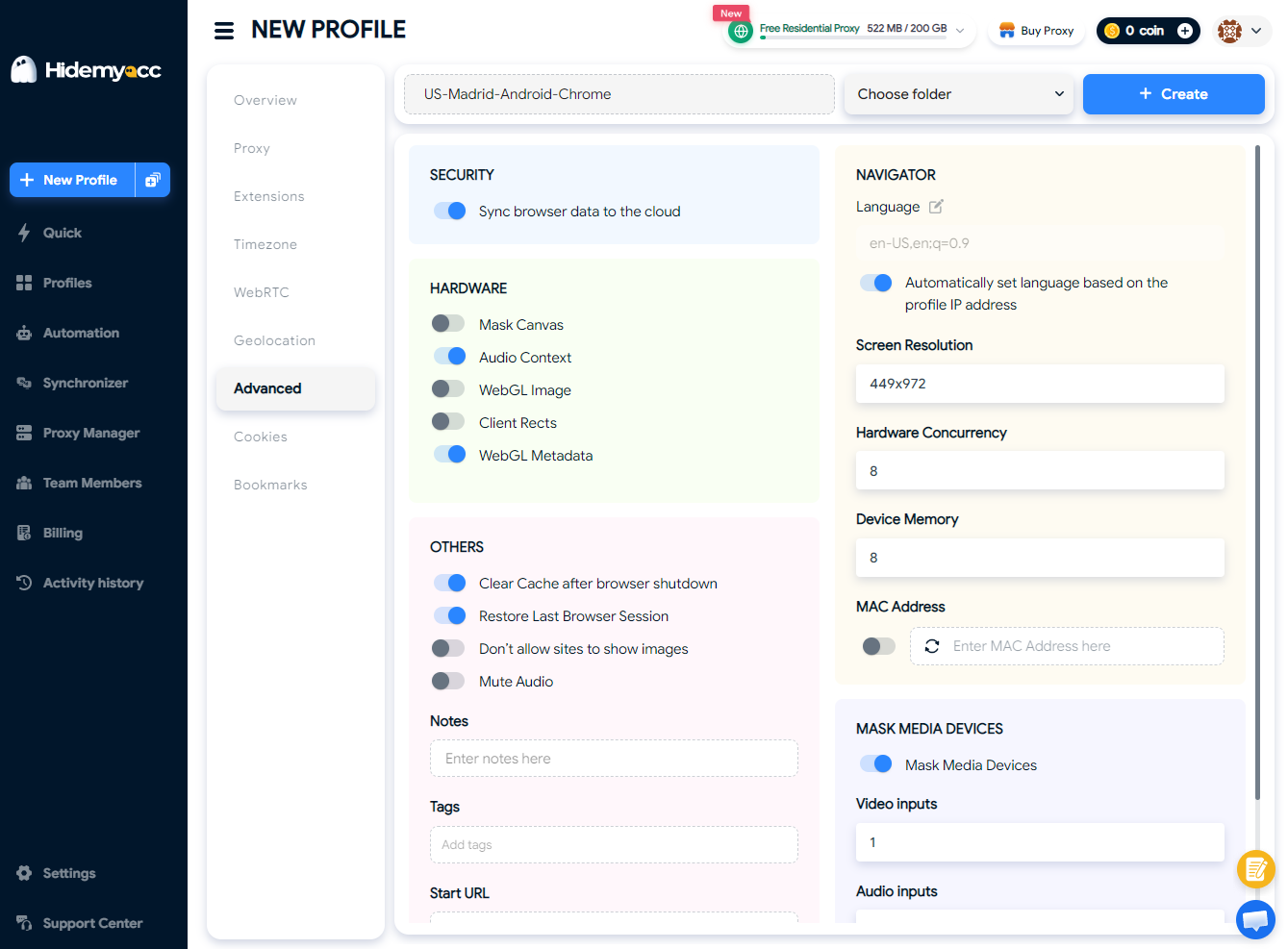
In the Navigator section, set the Language that corresponds to the market (e.g., es-ES for Spain). This is important for any flow rule targeting the browser language.
Screen resolution and hardware values can be left at their defaults.
Fill in the Notes fields (geo, test goal, date) and Start URL (link to your flow) so the test page opens immediately after launching the profile.
The rest of the fingerprint settings (Canvas, WebGL, Audio Context, and others) are pre-configured and do not require changes for this test.
Organize by folders: Create a folder for each campaign or client (give it a name and choose a color tag), then create profiles inside it. You can also share the folder with colleagues by granting View, Edit, or Admin permissions.
Pre-launch matrix check: Click Run, open the IP check page, and verify that the country, timezone, and language match the target geo. Only after that should you open the flow link. This way, if the result looks wrong, you will know the cause lies in the routing rules, not the profile settings.
Step 4: Run the test matrix
Open each profile one by one, follow the flow link, and record what happens. Here is an example matrix:
| Profile | Proxy | Device | Expected result |
| VN-Hanoi-Win-Chrome | Residential VN | Desktop | Vietnamese page, prices in VND |
| VN-HCM-Android | Mobile VN | Mobile | Vietnamese page, mobile layout |
| ES-Madrid-Win-Chrome | Residential ES | Desktop | Spanish page, prices in EUR |
| US-NY-Mac-Safari | Residential US | Desktop | English page, prices in USD |
| Geo not listed | Any other residential | Desktop | Default page |
Step 5: Fix and test again
Common problems and how to solve them:
Real visitors are routed to the wrong page: relax the rule or add an exception for this geo.
Correct country, wrong language: check any rule based on the browser language. Many countries have more than one commonly spoken language.
Wrong price or currency: check the linking between the geo and the page version.
Profile and proxy out of sync (timezone or language): fix the profile in Hidemyacc before blaming the routing rules.
After each fix, run the entire matrix again, not just the part you changed.
Common mistakes to avoid
Proxy geo does not match the profile: if the proxy is in one country, but the timezone and language belong to another, your test does not reflect a real visitor.
Reusing a single profile for multiple geos: old cookies and history can skew the result. Use a separate profile for each geo.
Testing only on desktop: in many geos, the majority of paid traffic - mobile.
Skipping the fallback page: the "everything else" bucket - the place where forgotten bugs live.
Testing only once: run the matrix again every time you change the page or add a new geo.
Conclusion
Multi-geo QA is a step that is easy to skip, but it costs you dearly. By replicating visitors using Hidemyacc profiles and checking them against GEO-targeting rules, you catch routing and localization errors before real traffic does. This workflow is especially useful for agencies, performance teams operating across multiple markets, and anyone responsible for localization.
New to Hidemyacc? You can start with a free 7-day trial that includes 30 profiles - enough to create the complete test matrix from this guide. When you are ready to subscribe, use the code WELCOME10 to save on your first payment.






প্রথম হয়ে আপনার মতামত শেয়ার করুন!
আমরা আপনার মতামতকে মূল্য দিই — আপনার অভিমত জানান।