



Пользователи часто обращаются к нам с похожими вопросами: «Почему открывается только White Page?», «Почему ссылка не работает?», «В чем проблема с клоакингом?» и другими подобными ситуациями.
Такие вопросы также возникают, когда пользователи проверяют свои потоки перед запуском рекламных кампаний и хотят убедиться, что всё работает корректно.
В этом материале мы разберем, по каким причинам происходит редирект на White Page и как можно исправить эту ситуацию.
Почему не отображается Offer Page?
Первое, что нужно сделать для решения проблемы — определить причину, по которой трафик отправляется на White Page.
Для этого откройте раздел «Клики», в панели Cloaking.House, найдите свой IP-адрес и проверьте колонку «Фильтр» — там будет указано, по какой причине произошёл редирект.
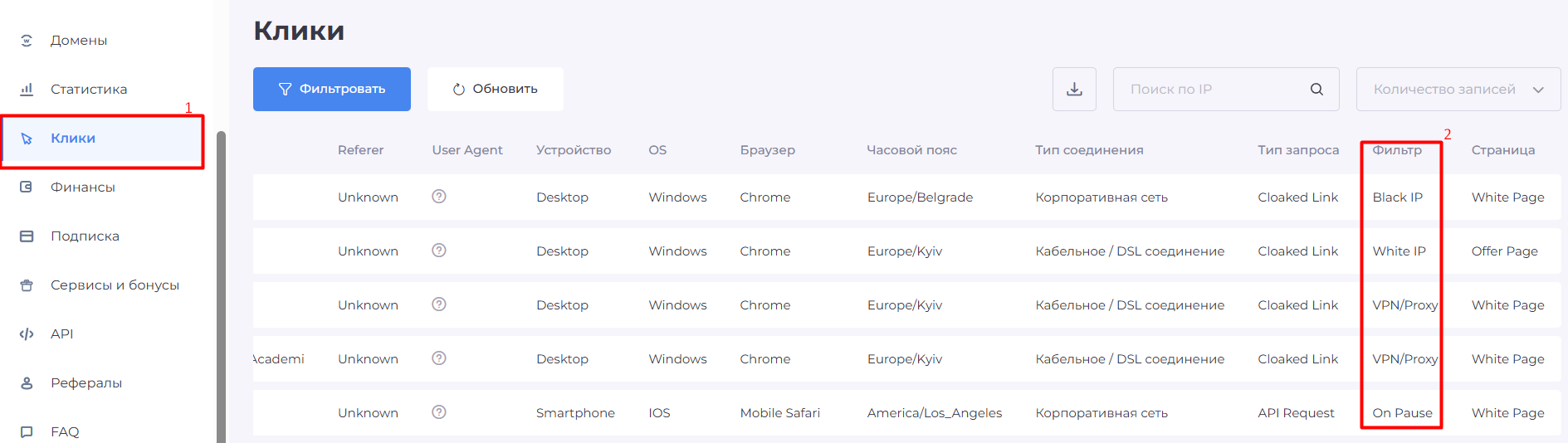
Когда вы определите причину, по которой трафик перенаправляется на White Page, вы сможете исправить её, следуя рекомендациям этого гайда. Учтите, что сразу несколько фильтров могут блокировать показ Offer Page, поэтому иногда придётся повторять процедуру несколько раз.
Быстрое решение
Если вы не хотите вдаваться в технические детали и просто хотите проверить, что ваш поток работает корректно, есть простой способ. Чтобы гарантированно увидеть Offer Page и убедиться, что она отображается правильно, добавьте свой IP-адрес в белый список в настройках потока.
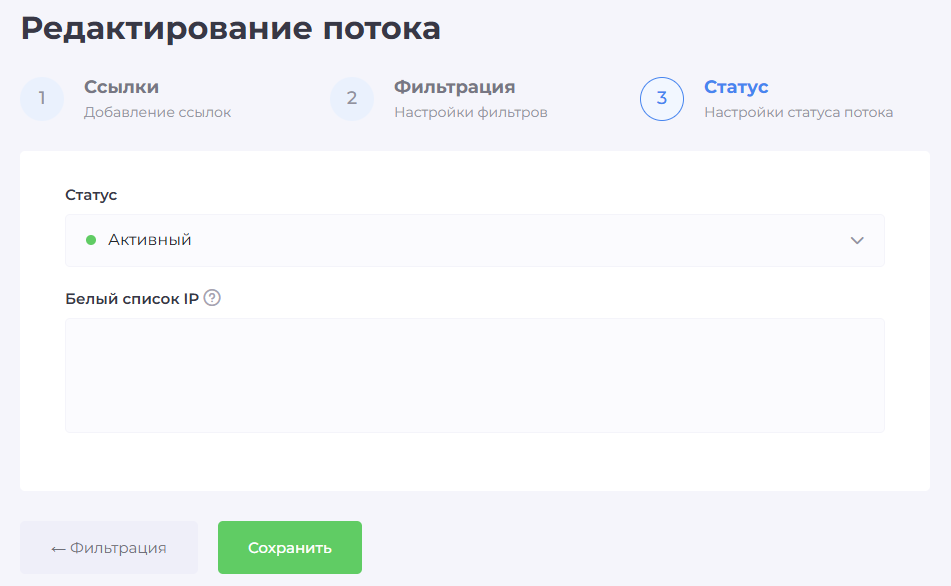
Ввод своего IP-адреса здесь позволит обойти все фильтры и сразу получить доступ к Offer Page.
Если после добавления IP в белый список Offer Page отображается корректно, значит поток настроен правильно, и беспокоиться не о чем. Можно спокойно использовать ссылку в рекламных кампаниях.
Детальный разбор причин, по которым Offer Page не отображается
Команда Cloaking.House собрала все необходимые сведения, которые помогут понять, почему трафик перенаправляется на White Page, и как это исправить.
В большинстве случаев проблема связана с настройками фильтров вашего потока, но могут быть и другие причины, о которых мы расскажем далее.
Фильтры блокируют доступ к Offer Page
При создании потока вы задаёте определённые параметры. Если пользователь (в данном случае — вы) не соответствует этим условиям, система не покажет ему страницу оффера. Это ключевая функция клоакинга, которая защищает ваш поток.
Рассмотрим основные фильтры, из-за которых может происходить редирект на White Page:
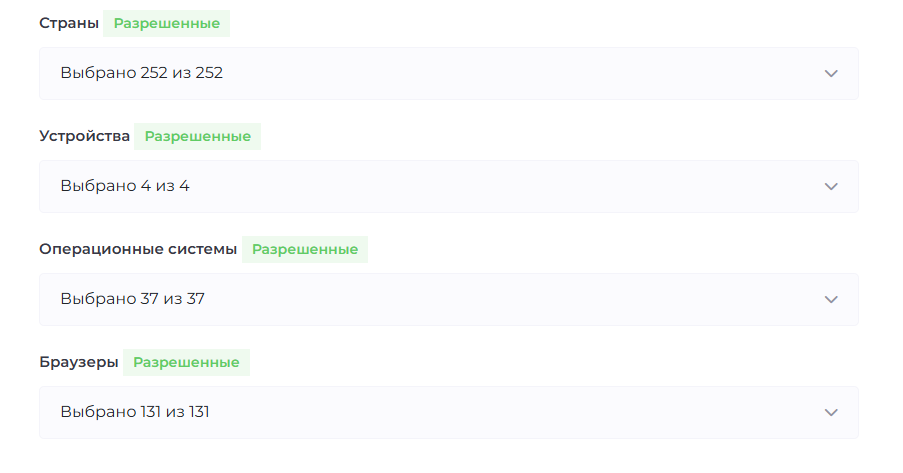
Страна: при настройке потока вы указываете, какие страны могут получать доступ к офферу. Если ваш IP не входит в разрешённые страны, Offer Page не откроется. В этом случае единственный способ увидеть страницу — добавить свой IP в белый список. Обратите внимание: VPN или прокси здесь не помогут.
Устройство/Браузер/ОС: аналогично фильтру страны, если устройство, браузер или операционная система не соответствуют параметрам потока, доступ к Offer Page будет заблокирован. Единственный способ обойти это ограничение — внести ваш IP в белый список.
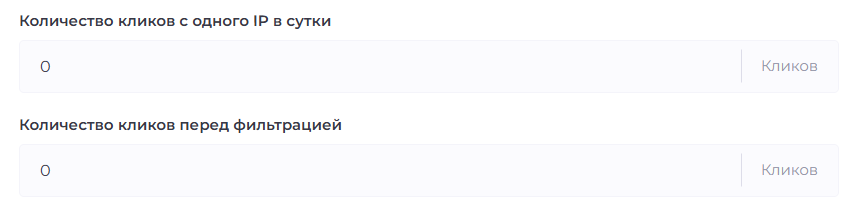
Количество кликов перед фильтрацией: Эта функция особенно полезна, если вы хотите убедиться, что боты или модераторы не увидят страницу оффера в первые клики. Например, если ввести «100», первые 100 переходов будут направлены только на White Page. Чаще всего этот инструмент используется, чтобы повысить шансы пройти модерацию рекламной кампании. Если вы указали число и попробовали перейти по ссылке, вы увидите White Page. Чтобы отключить фильтр, просто установите значение «0».
Количество кликов с одного IP в сутки: Эта настройка позволяет ограничить число переходов с одного IP в день, чтобы один и тот же пользователь не заходил на страницу оффера слишком часто. Вы задаёте максимальное количество кликов, после чего последующие переходы перенаправляются на White Page. Если ограничение не нужно, оставьте «0».
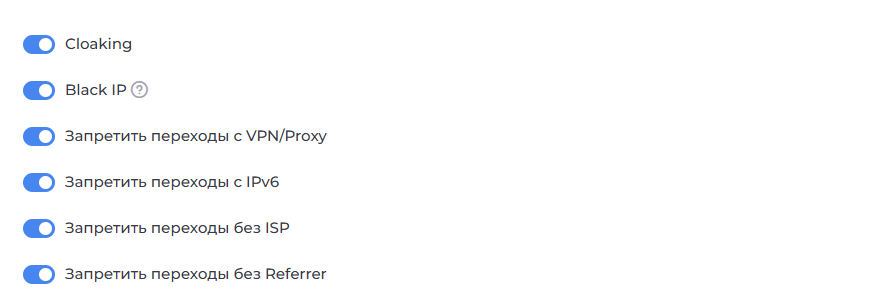
Реферер: если причина редиректа на White Page связана с реферером, это значит, что поток настроен так, чтобы весь трафик без реферера отправлялся на White Page.
Реферер — это сайт, с которого пользователь переходит по ссылке. Например, если вы запускаете рекламу в Facebook, а пользователь кликает на неё и переходит на ваш сайт, реферером будет Facebook.
Когда вы открываете ссылку напрямую, реферера нет, и система перенаправляет вас на White Page. Чтобы увидеть Offer Page, можно временно отключить эту опцию. Однако перед запуском рекламной кампании настоятельно рекомендуется включить её обратно — это важный элемент безопасности потока.
VPN/Proxy: если в колонке «Клики» указано «VPN/Proxy» как причина редиректа на White Page, это означает, что вы пытались перейти по ссылке, используя VPN или прокси. В таких случаях доступ к Offer Page будет заблокирован.
Другие возможные причины отсутствия Offer Page
Существуют и менее распространённые факторы, из-за которых трафик может направляться на White Page:
Поток находится на паузе — в этом случае все переходы автоматически отправляются на White Page.
Истёк срок действия подписки — система автоматически ставит все активные потоки на паузу, и показ Offer Page прекращается.
Это основные причины, по которым вы можете видеть только White Page. Используя рекомендации из этого руководства Cloaking.House, вы сможете быстро определить источник проблемы и устранить его именно в вашем случае.





Будьте первым, кто поделится мнением!
Мы ценим вашу обратную связь — поделитесь своим мнением.